Every competitor move, on one screen
Battlecards, recommendations, reviews, pricing, hiring and more, each built from sources you can open. The briefing lands on Monday. The dashboard is there the rest of the week.
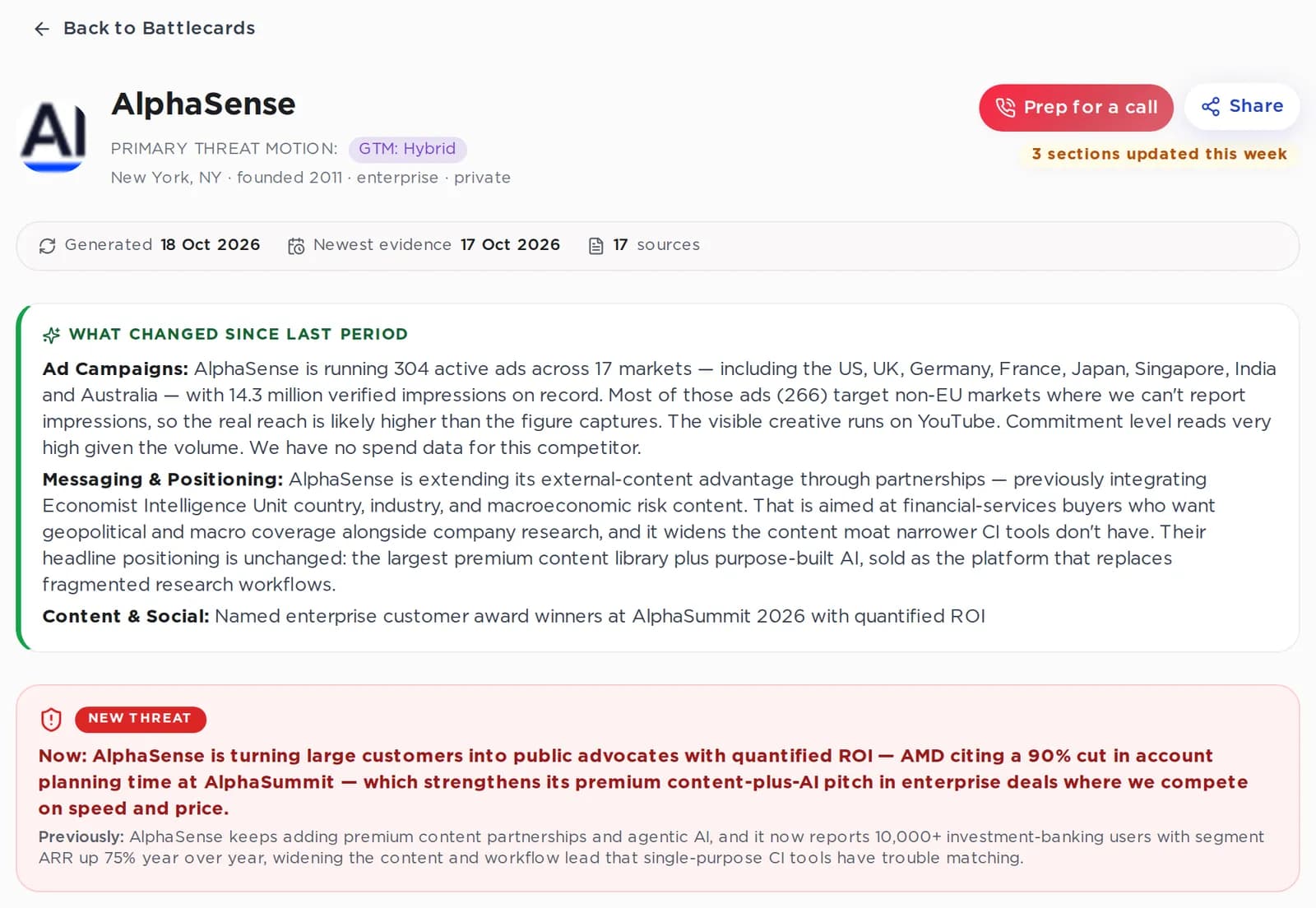
What’s inside
Every view in the dashboard, grouped by the job you’re doing.
- All insightsGrouped, list or timeline. Filter by rival, category, status, date
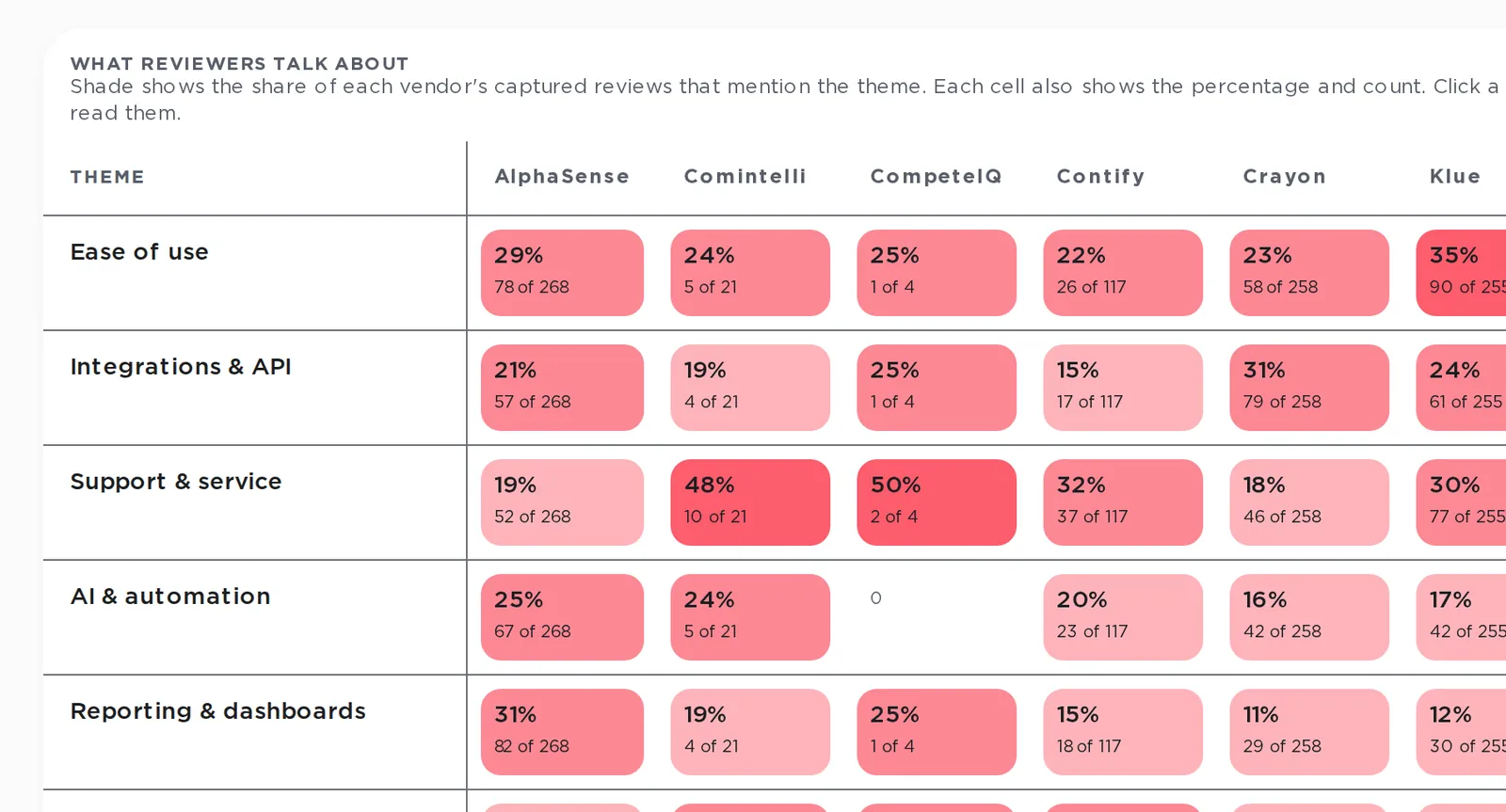
- ReviewsRatings and what reviewers talk about, rival by rival
- PricingEvery pricing-page change, and price ladders side by side
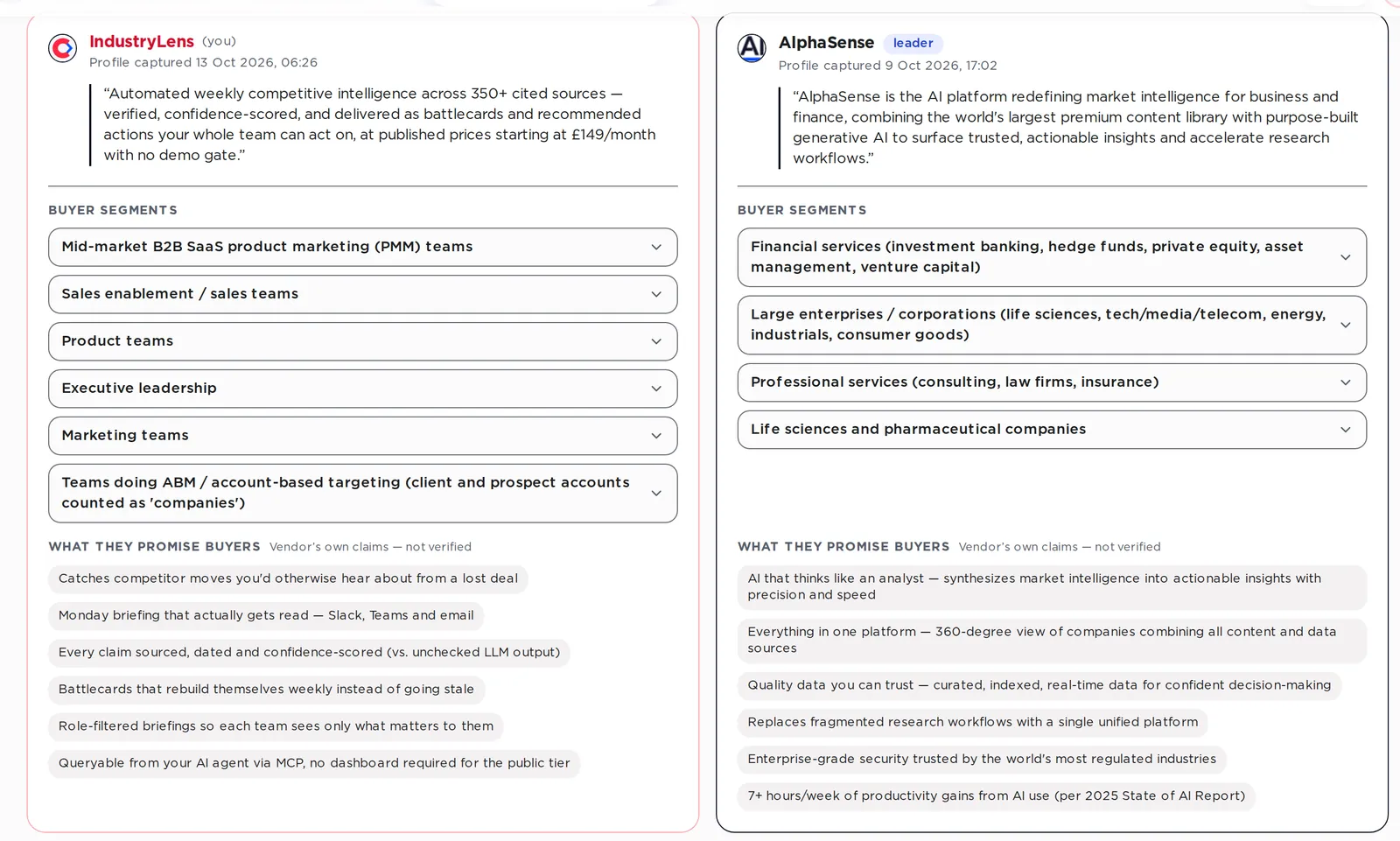
- PositioningWho each rival sells to and what they promise
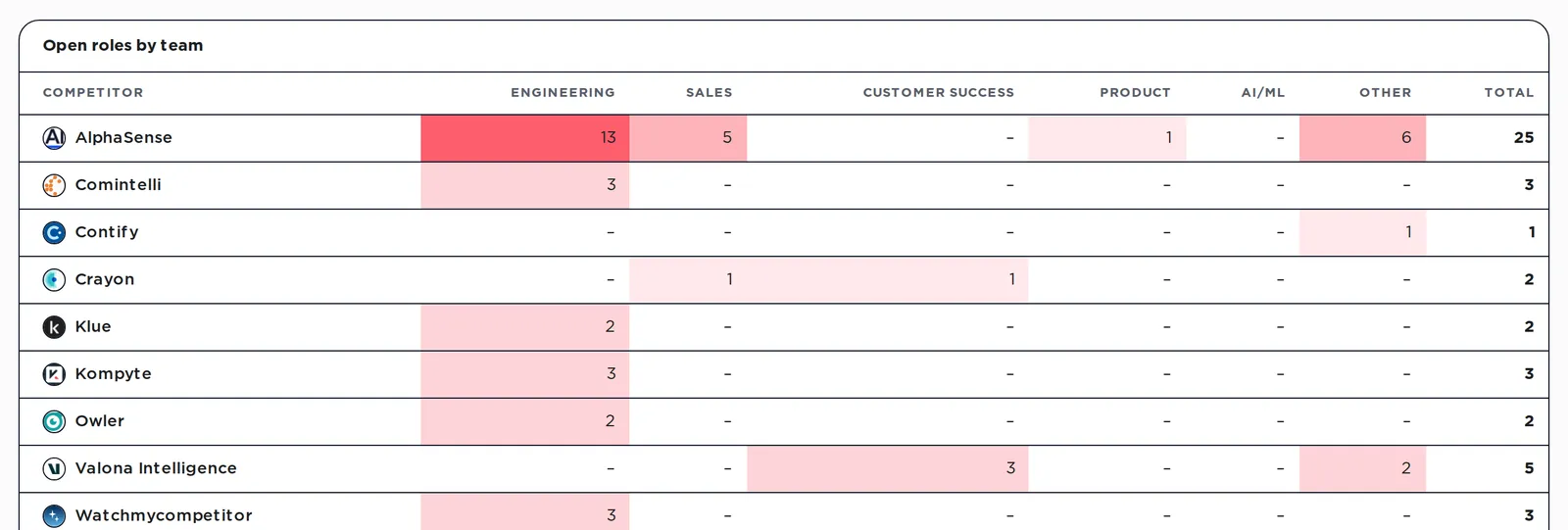
- HiringOpen roles by team, seniority and location
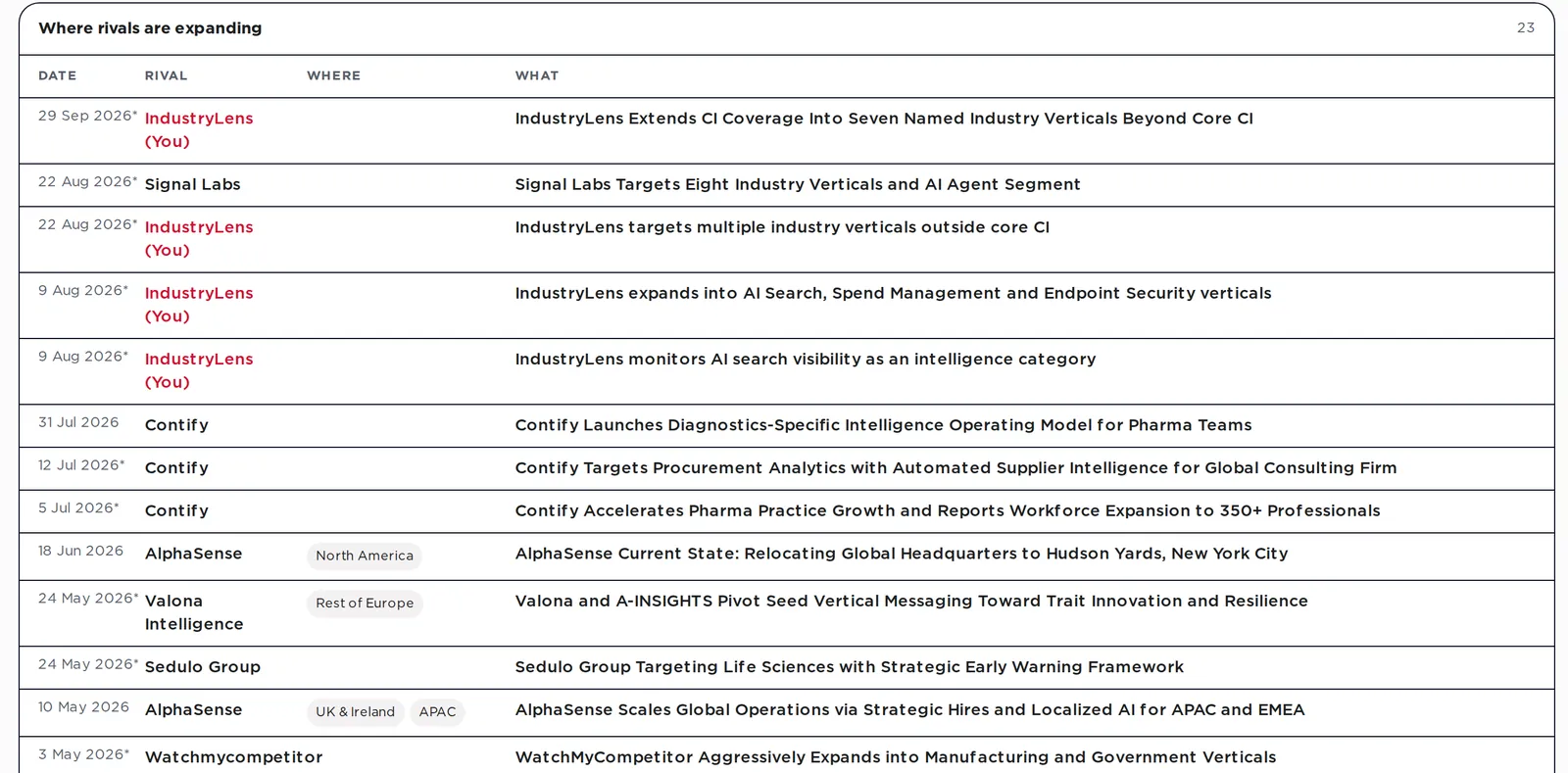
- MarketWhere rivals are expanding, dated
- ContentWebinars, videos, reports and case studies
- CampaignsAds by channel, funnel stage and market
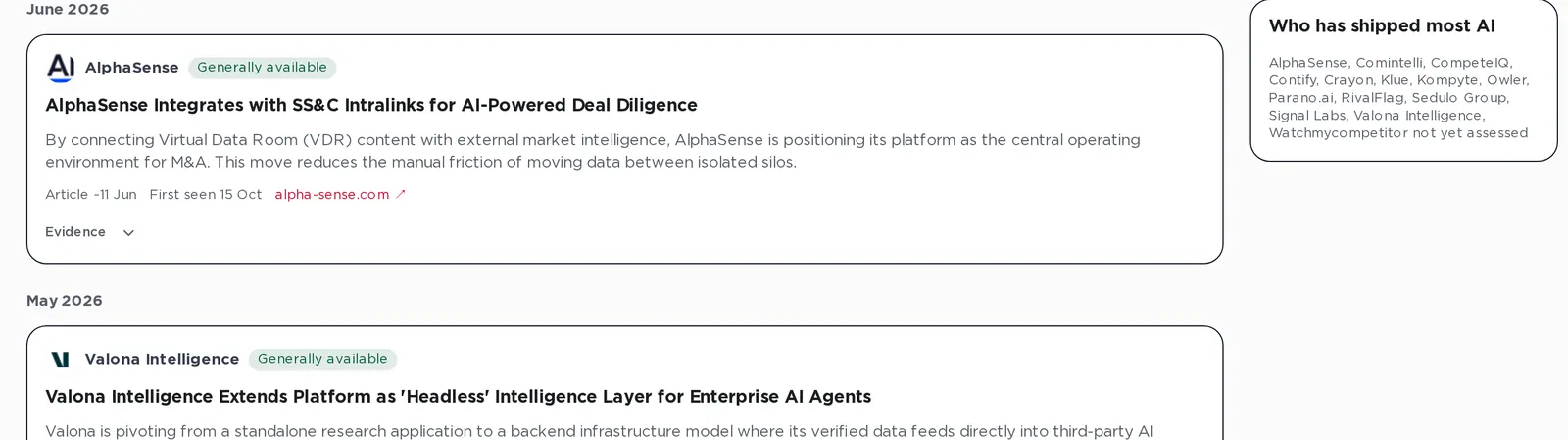
- AI & agentic movesWhat rivals shipped, and what they only announced
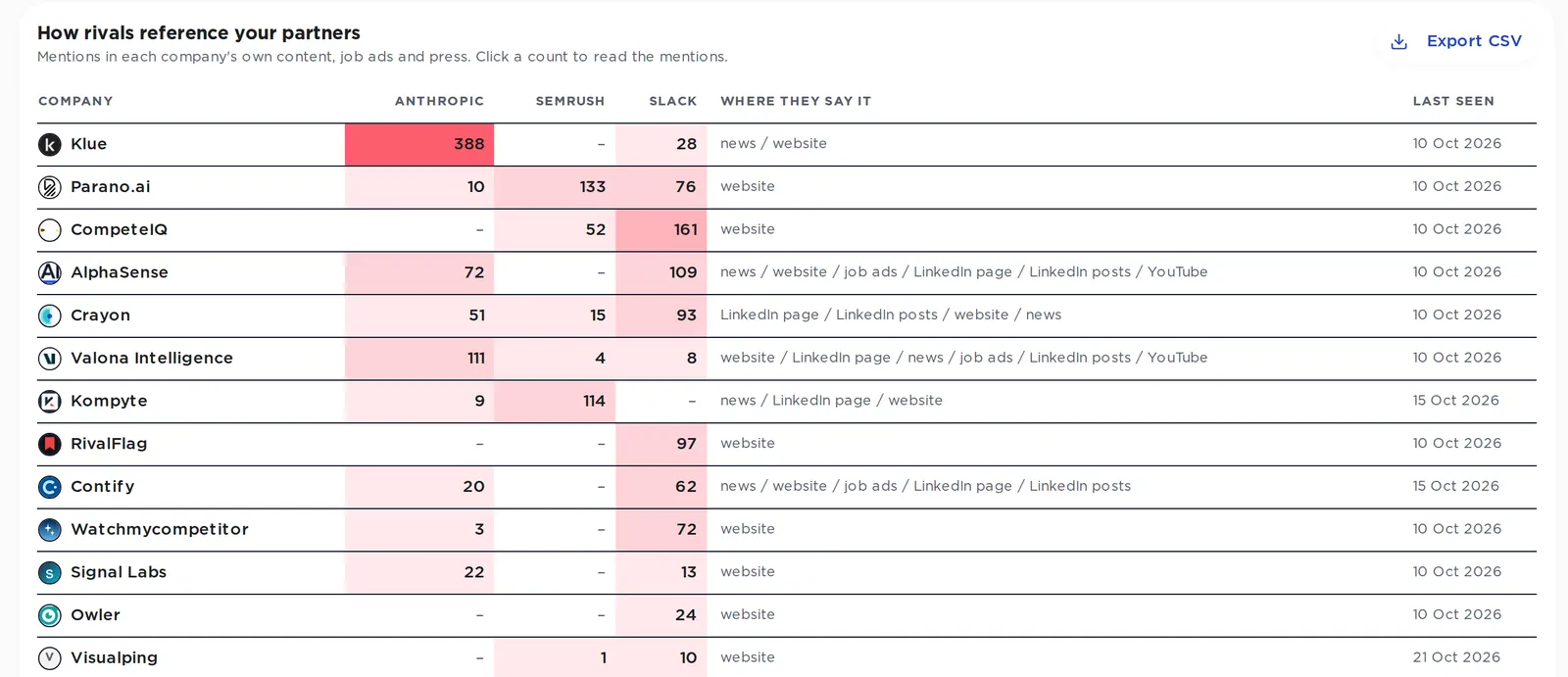
- Partners & ecosystemThe partners rivals lean on, and their integrations
- EOL watchEnd-of-life dates for the software your buyers run
- Strengthen your claimsYour claims checked against reviews and your own site
- Company profileWhat we know about you. Edit and lock any field
- AskQuestion your data in plain English
- SearchCmd-K jumps to any rival, battlecard or insight
- AlertsSlack and the weekly email, by topic you pick
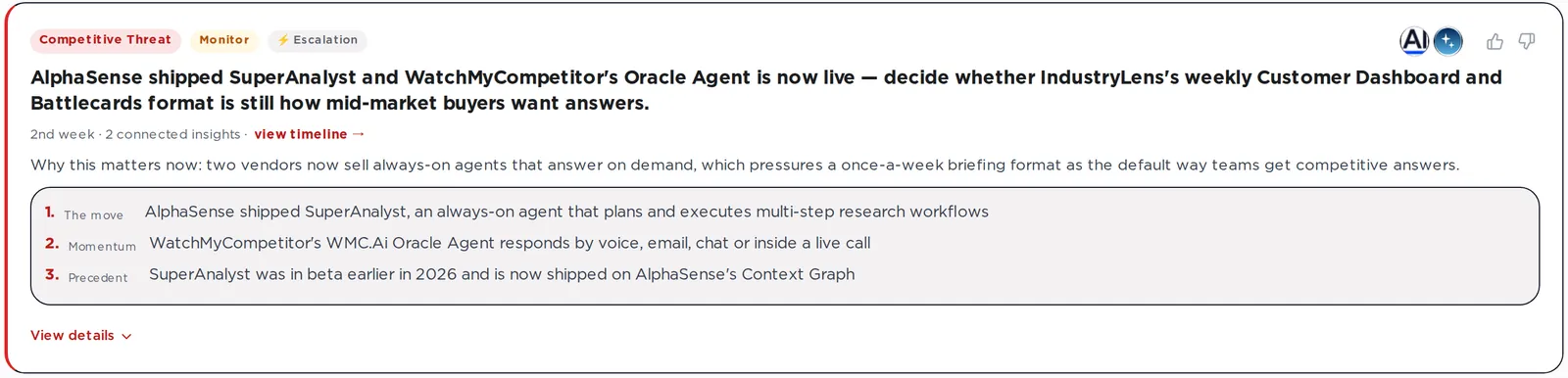
Start the week with the decision
Home turns the week’s insights into a short list of calls to make.
- Ranked by urgency and how much evidence backs it
- The decision, framed for your team
- The move, the momentum and the precedent
- Every line opens the insights behind it
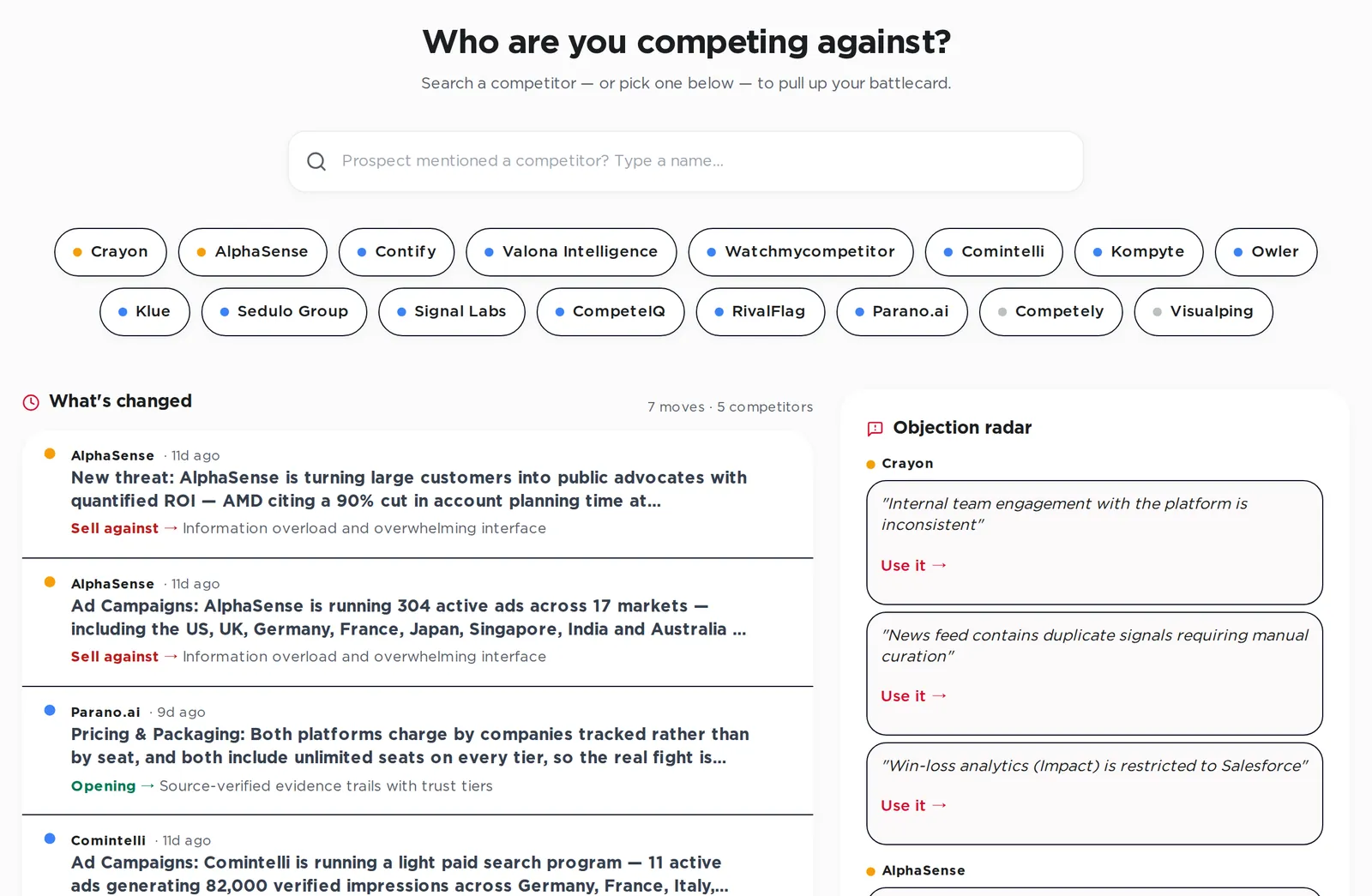
A rival comes up on a call. Answer in seconds.
Sales home is built for the moment a prospect names a competitor.
- Type the name, or tap a threat-ranked chip
- What changed, with a “sell against” line for each move
- Objection radar: real complaints from their reviews, ready to use
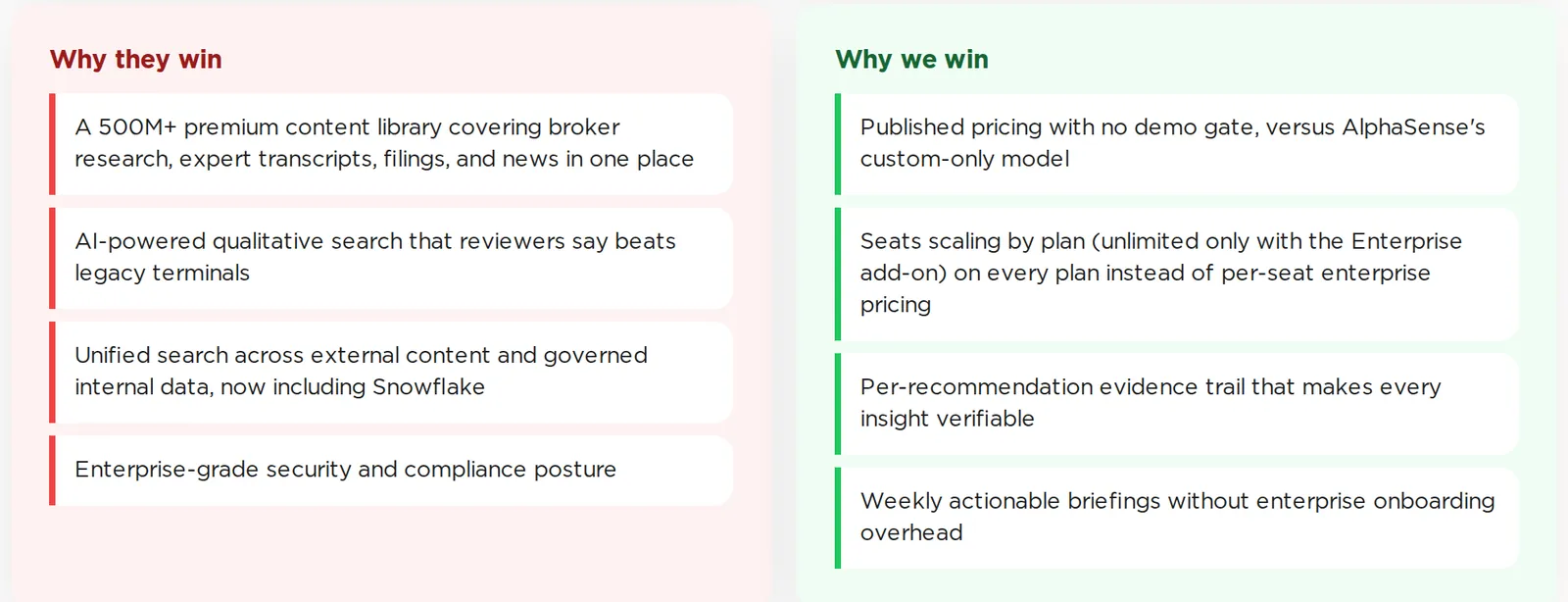
- Why they win and why we win, side by side
Every insight shows its working
Open any insight and the evidence is underneath. A chatbot gives you the claim. This gives you the source.
- Verified, flagged or unverified, on every card
- Key data pulled straight from the source
- The video, post, ad or review it was read from
- Single-source insights held apart in “needs more signal”
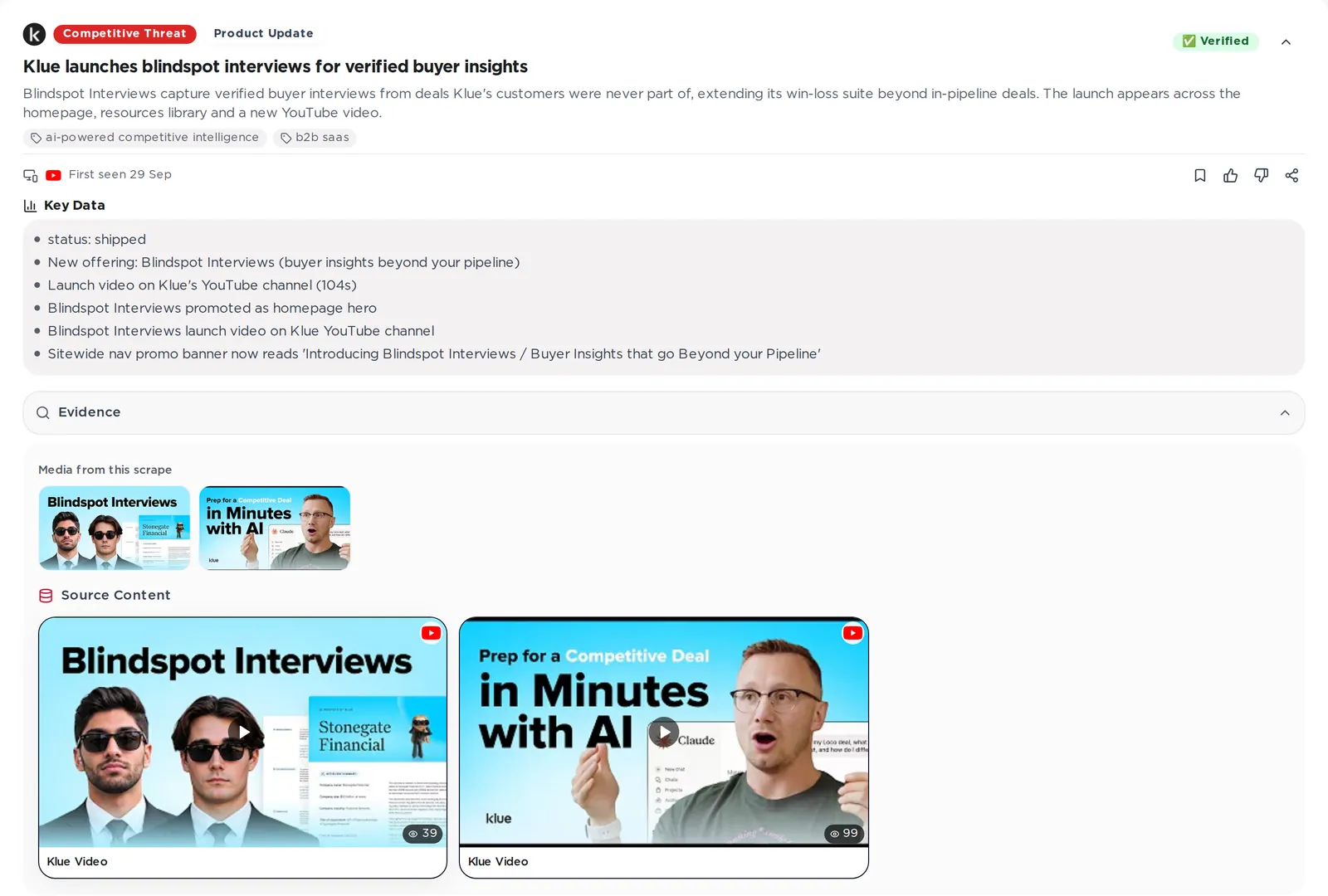
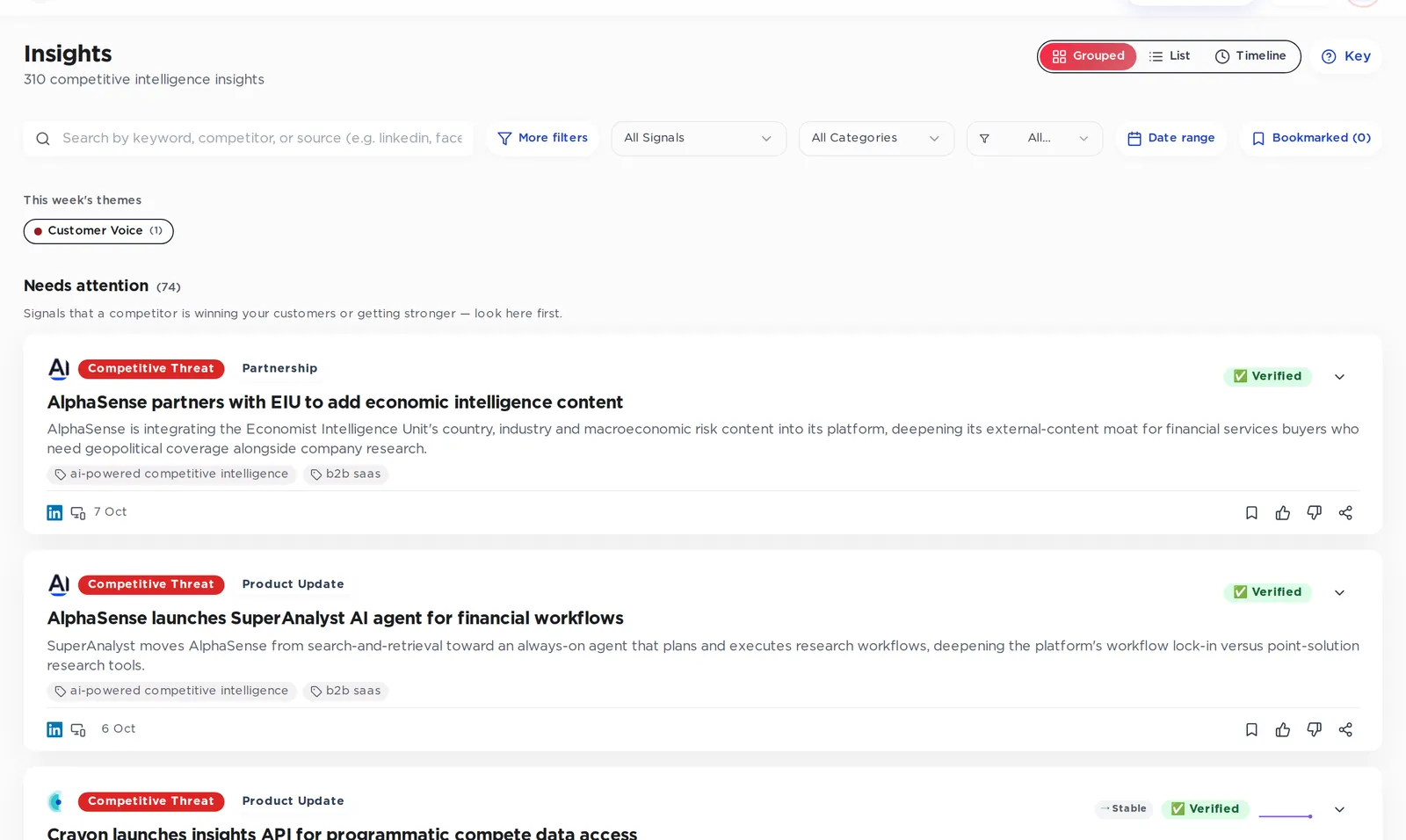
All insights: grouped, list or timeline, filtered by rival, category, verification status or date.
Every rival on the same screen
Each topic gets its own view, with one row per competitor, so the gaps show up on their own.
See yourself the way buyers compare you
Put your company next to any rival and read both pitches side by side.
- Who each of you sells to
- What each of you promises, marked as the vendor’s own claim
- In the dashboard, each of your own claims is also checked against reviews and your site
- And shown what to say instead when a claim is at risk
Check the data yourself
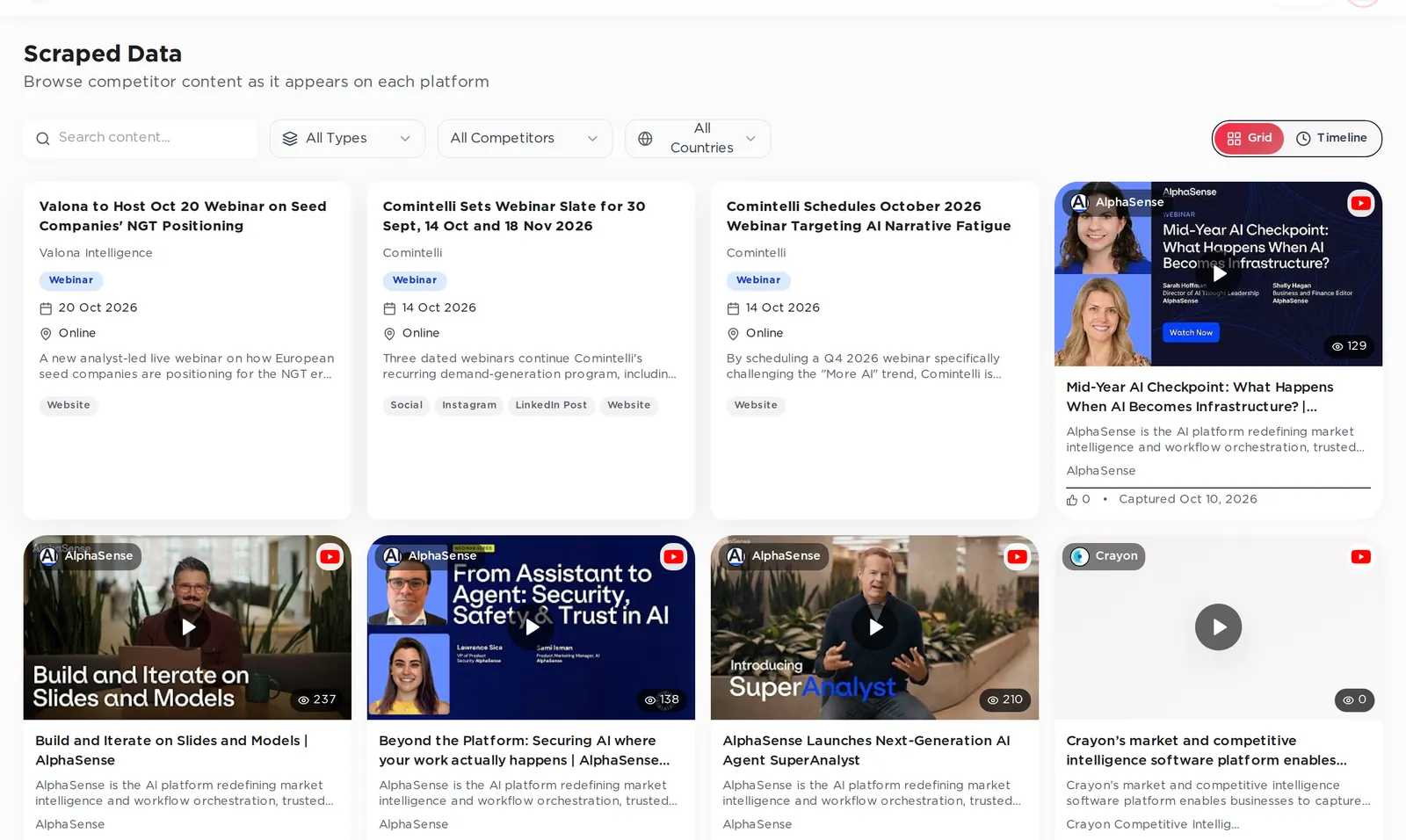
Everything we read is in the dashboard too, exactly as it was captured.
- Posts, videos, ads, reviews, news, events and newsletters
- Filter by type, competitor and country
- A separate coverage view shows every company against every source, and the known limits
- Ask us to add a source from the same page
Take it where your team works
What the checks stopped before it reached the dashboard.
Every view filters the same way: a draft only reaches you once it has passed. Vendors stay unnamed so the site never repeats a claim we threw out.
“A vendor cut its annual plan price.”
That was the normal annual-billing discount, not a price cut.
“A vendor is running 400 active ads.”
The ad library shows at most 200 results per page. We hit that limit; we did not count 400 ads.
“A vendor is listing exactly 50 open roles.”
50 is the job board’s page limit, not a real count. The true number is unknown.
Every draft runs through 29 checks. See them all.
Questions about the dashboard
Which plans include the dashboard?
Standard and Enterprise. On Enterprise we also build the dashboard around your personas and sources. The Free plan has the weekly email and the MCP connector, not the dashboard.
How fresh is the data?
Sources are captured on a schedule per source type, and every battlecard and insight shows when it was generated and the date of its newest evidence. Data coverage shows the last check for every company and source.
Can I hide views my team doesn’t use?
Yes. In Settings, the Tabs card hides views like AI & agentic moves, Partners, EOL watch or Campaigns for everyone on your account.
Can people outside the dashboard see a battlecard?
Yes. Share a battlecard as a read-only link that lasts 90 days and can be revoked, or export up to 25 battlecards as a PDF document or a slide deck.
How do Slack alerts work?
Connect Slack once from Settings and pick a channel. Alerts follow the topics you switch on: pricing changes, product launches, events, personnel changes, marketing campaigns, funding and acquisitions.
Where does each insight come from?
Every insight links to the page, post, video, ad or review it was read from. Insights backed by a single source are held in a separate “needs more signal” list instead of mixing with checked ones.
How we check →